If you'd like to add an additional layer of security to your site, Outseta support two-factor authentication (2FA) via two methods:
- Authenticator Apps (Google Authenticator, 1Password, Authy)
This article will walk you through how you can set up and configure 2FA.
Enable Two-Factor Authentication (2FA)
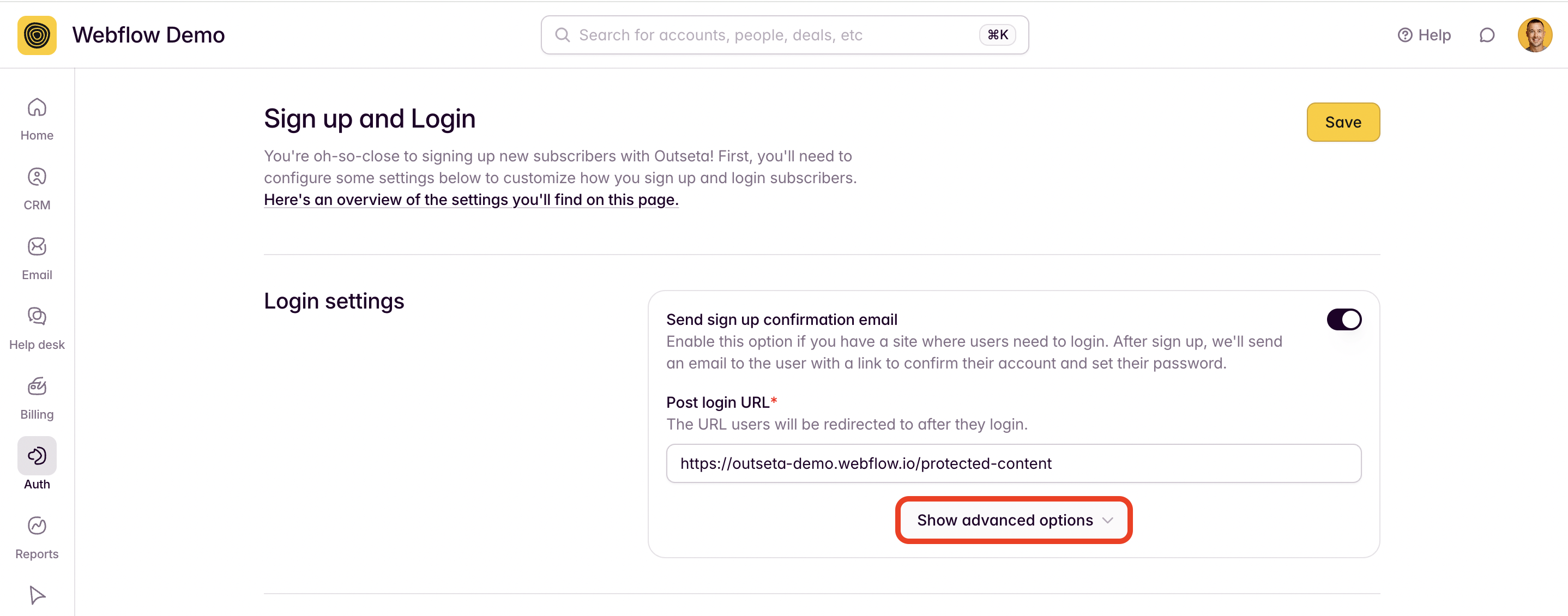
1. Navigate to AUTH > SIGN UP AND LOGIN and click SHOW ADVANCED OPTIONS.
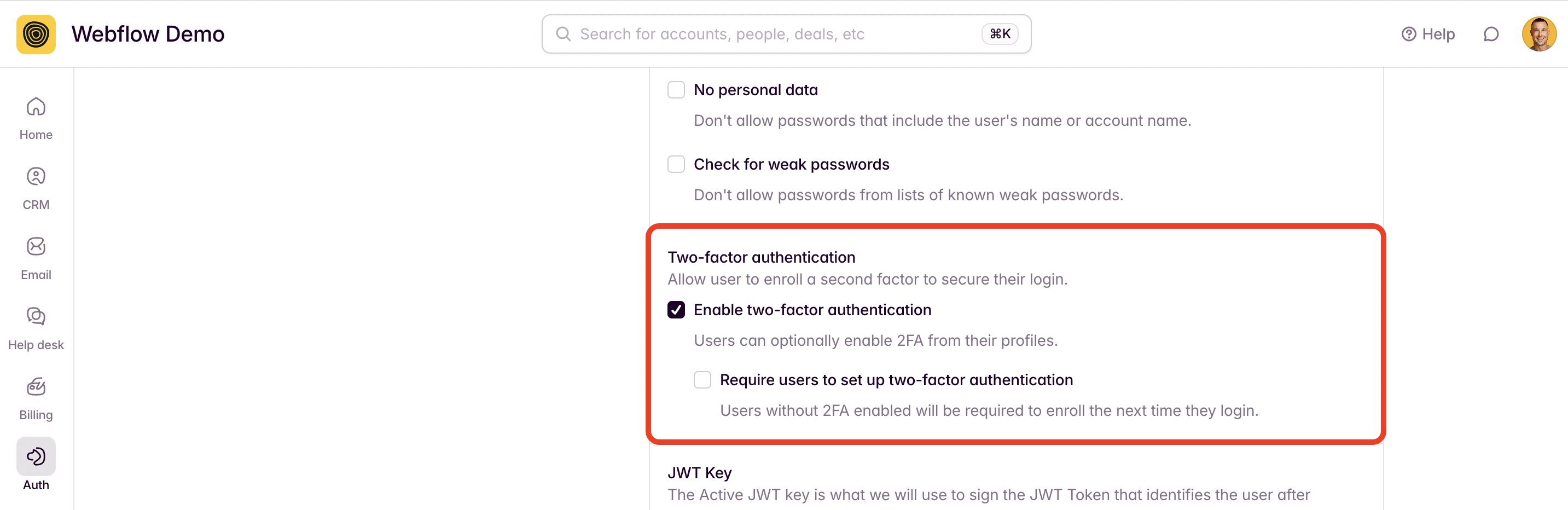
2. Select ENABLE TWO-FACTOR AUTHENTICATION.
- If you only select this first checkbox, users have the option of enabling 2FA—they can do so from their Outseta profile.
- If you also select the REQUIRE USERS TO SET UP TWO-FACTOR AUTHENTICATION checkbox, every user will be required to enroll in 2FA. If they already have login credentials configured, they'll be prompted to enroll on their next login.
Once you've made your selections, click SAVE.
2FA enrollment flow
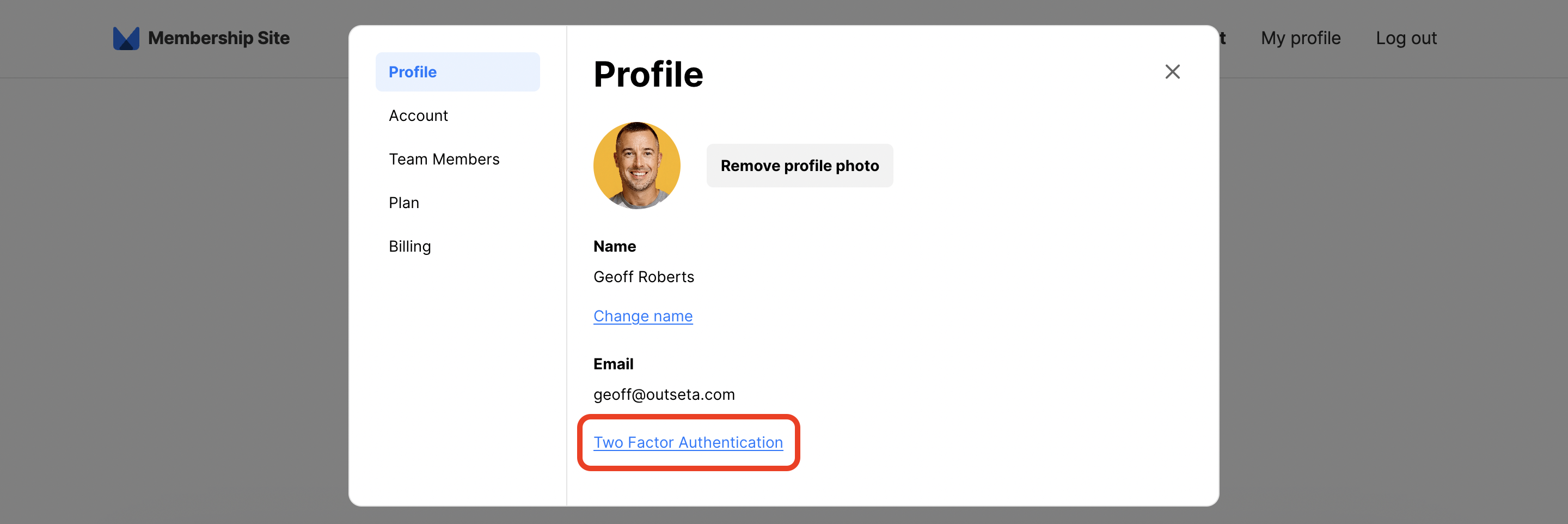
1. If you're not requiring 2FA for all users on your site, individual users can enable 2FA for themselves by logging into your site clicking the TWO FACTOR AUTHENTICATION link that appears under their email address on the PROFILE tab.
2. Next, you can choose whether you want to setup 2FA based on email or using an authenticator app. If you choose to use an authenticator app, Google Authenticator, Authy, and 1Password are supported.
In this example I've chosen email. Click ENABLE.
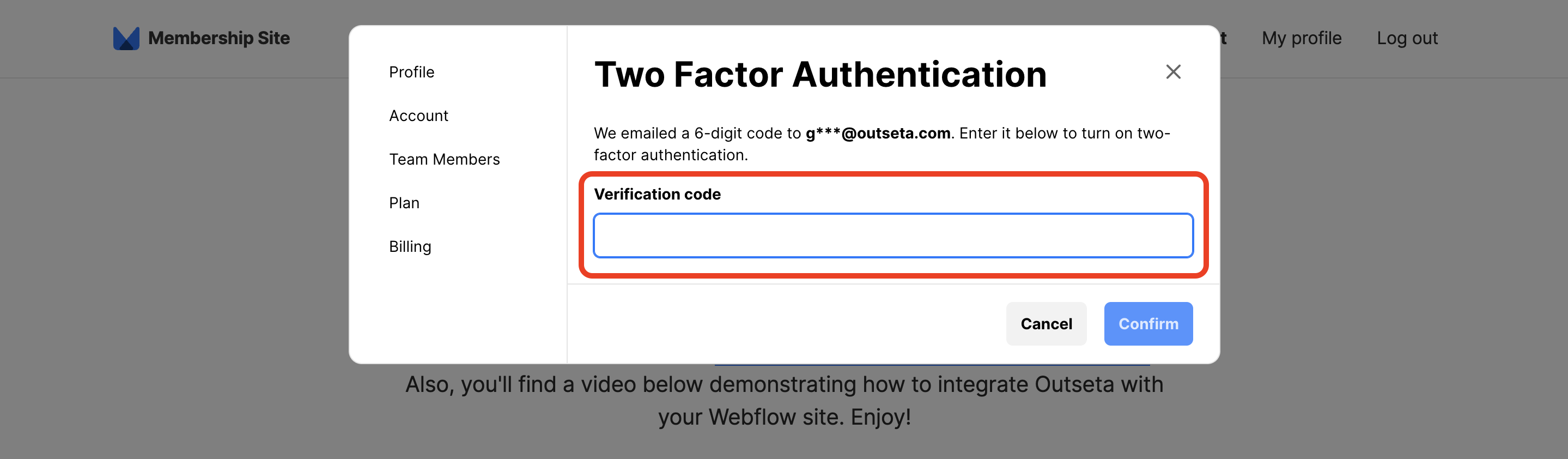
3. Next, you'll be prompted for a verification code—in this case, the code is delivered via email.
Here's an example of the email that the recipient will receive.
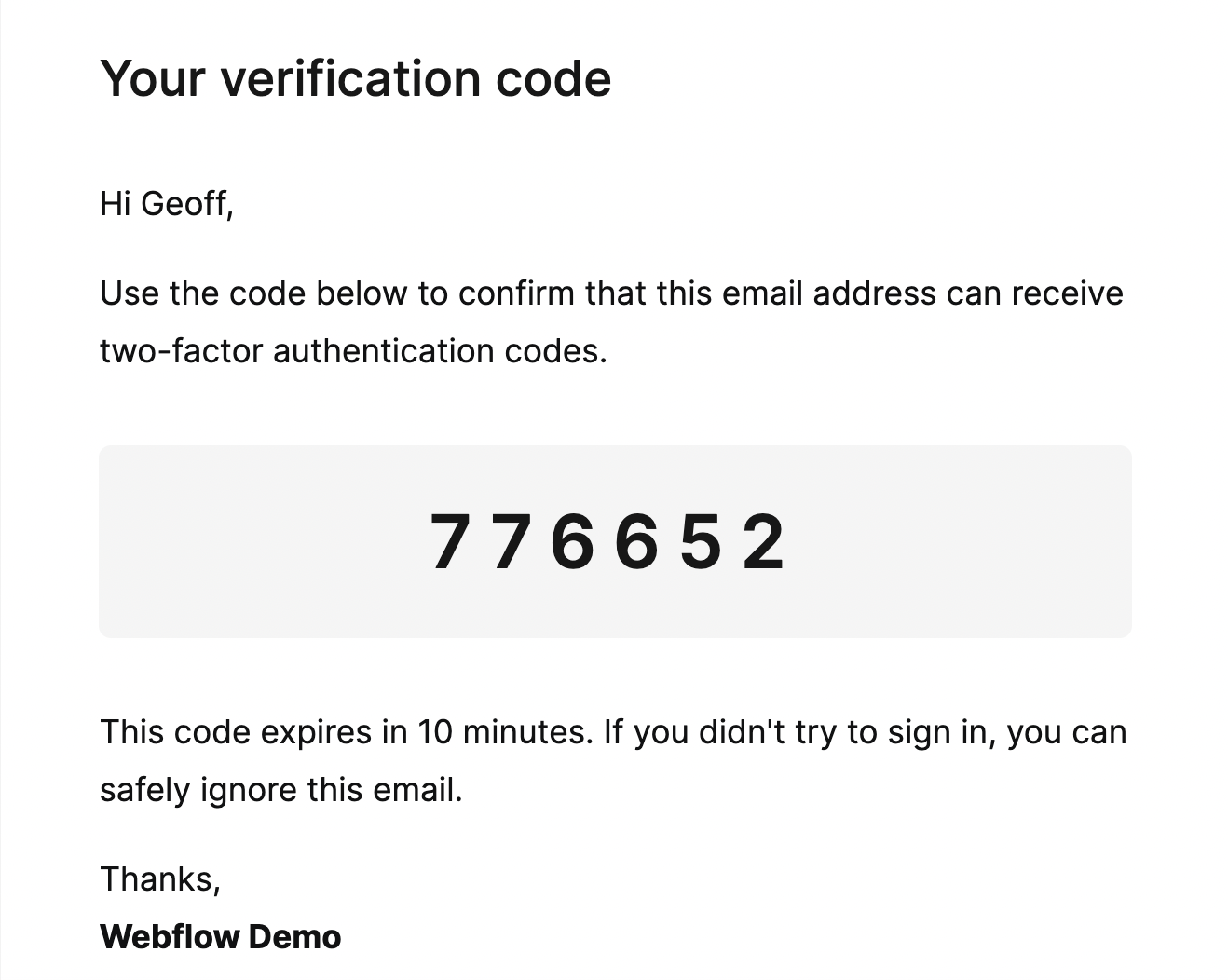
Enter the verification code. You'll now see a prompt mentioning that 2FA was enabled successfully.
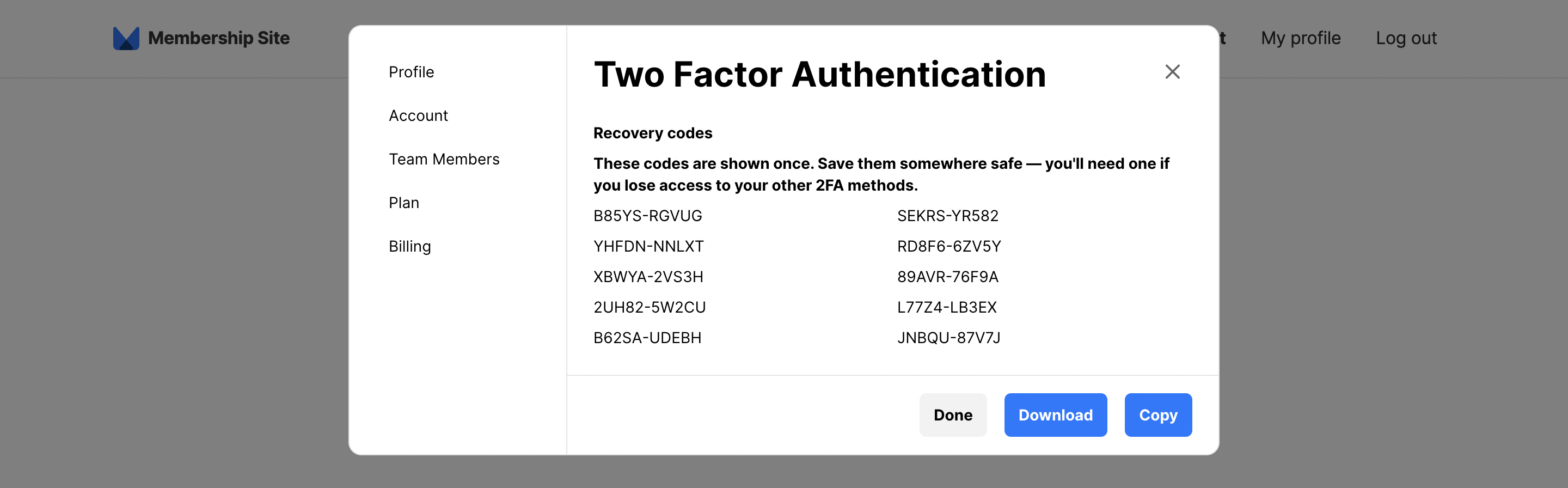
4. IMPORTANT! Copy or download the RECOVERY CODES that now display. You'll need these if you somehow lose access to your 2FA method, so be sure to store them somewhere safe.
Once you've copied or downloaded your recovery codes and have stored them safely, click DONE.
Regaining access to an account
While 2FA is a security measure that intentionally adds rigor to the login process, it's inevitable that at some point a user with 2FA enabled will get locked out of their account having lost access to their 2FA method. If they have also lost access to their recovery codes, they'll likely turn to you for help regaining access to their account.
We recommend that you be extremely diligent in verifying that the user is who they say they are in this scenario. Once you've done so, admin users of your Outseta account can elect to generate additional recovery codes that you can then supply to the end user. To do so:
1. Navigate to the PERSON record for the user who is locked out of their account.
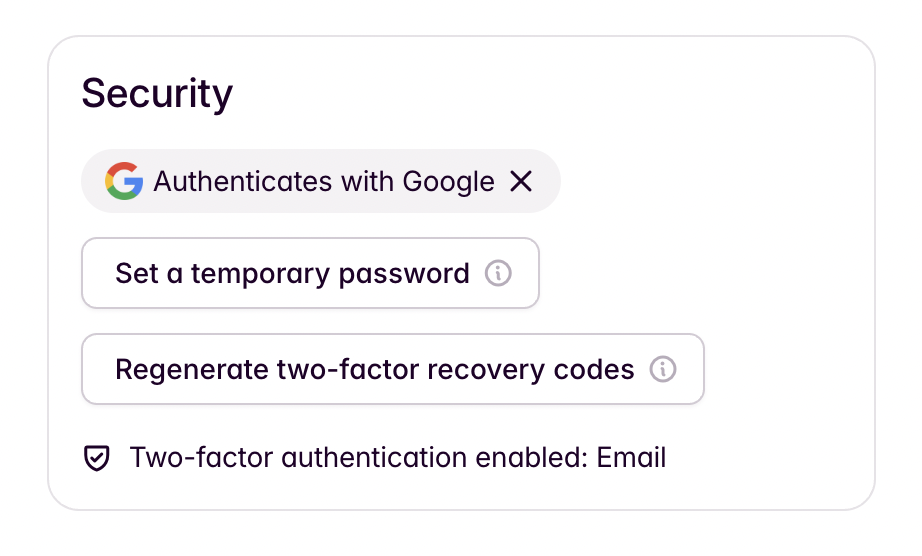
2. Scroll down to the SECURITY section and click REGENERATE TWO-FACTOR RECOVERY CODES. You can then provide these codes to the end user so they can regain access their account.