
Outseta allows you to use Stripe Tax to automatically collect tax from customers no matter where you sell your products and services. When you login to Stripe, make sure that you've selected the Stripe account that's currently connected to your Outseta account.
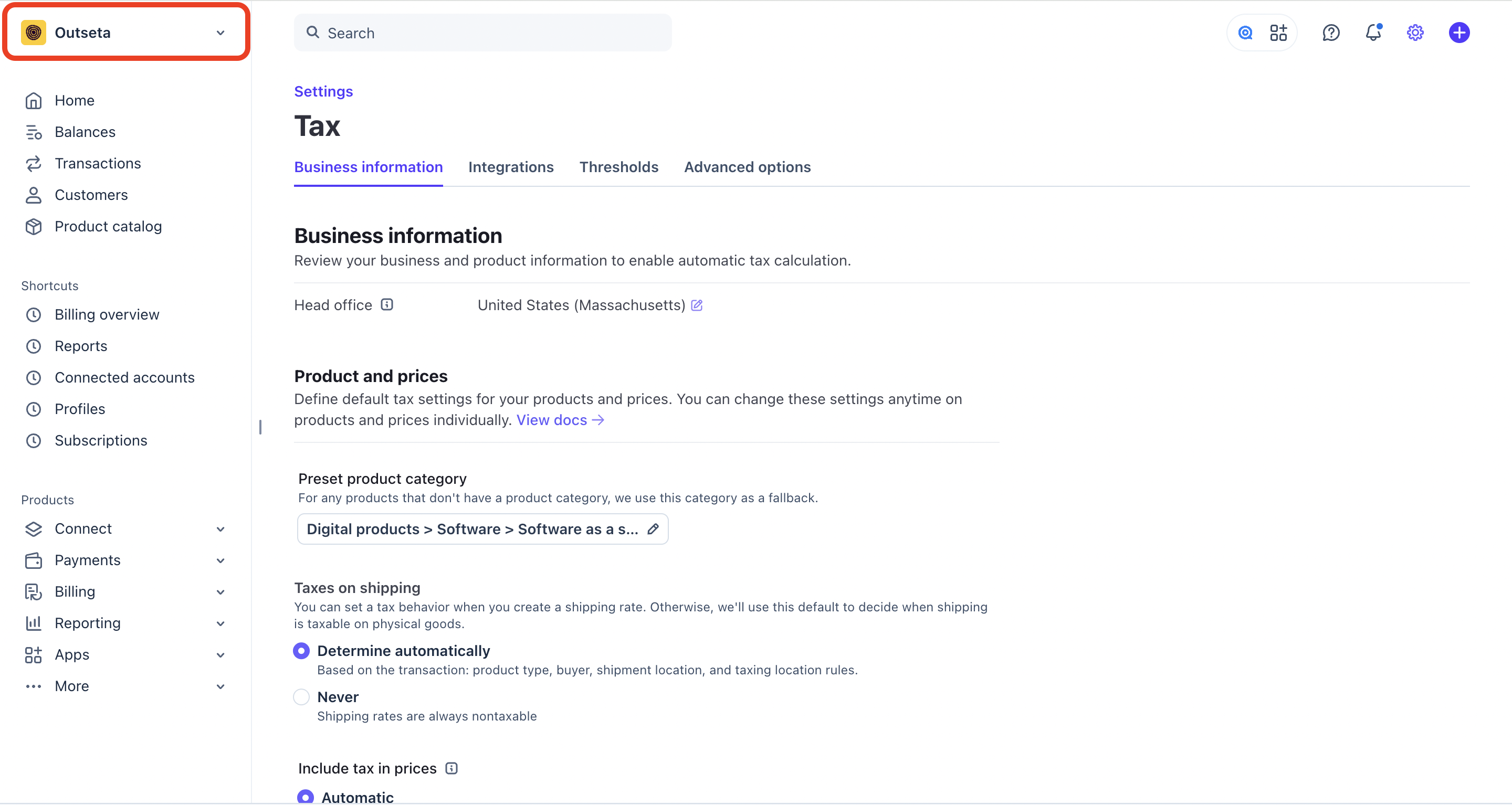
From there, we recommend that you follow Stripe's documentation on configuring you tax settings:
That said, we've also included some tips below to help walk you throw the process.
Set up your tax settings in Stripe
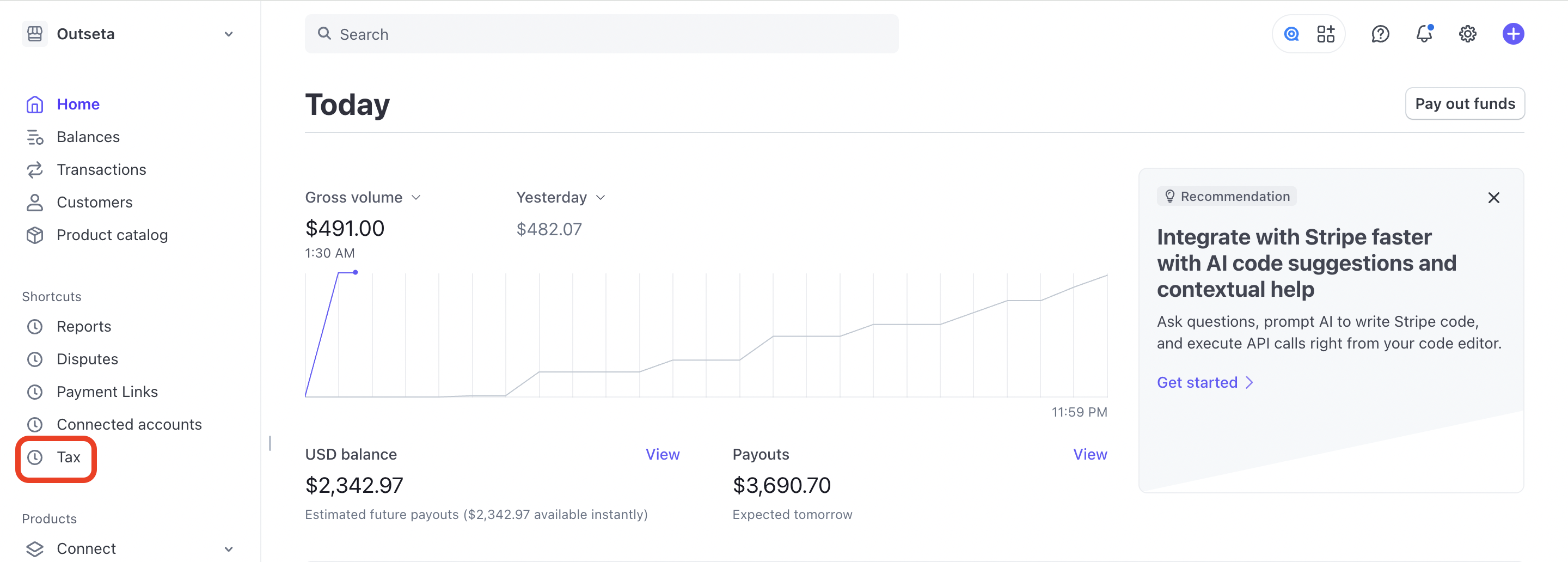
1. Login to your Stripe account and select TAX.
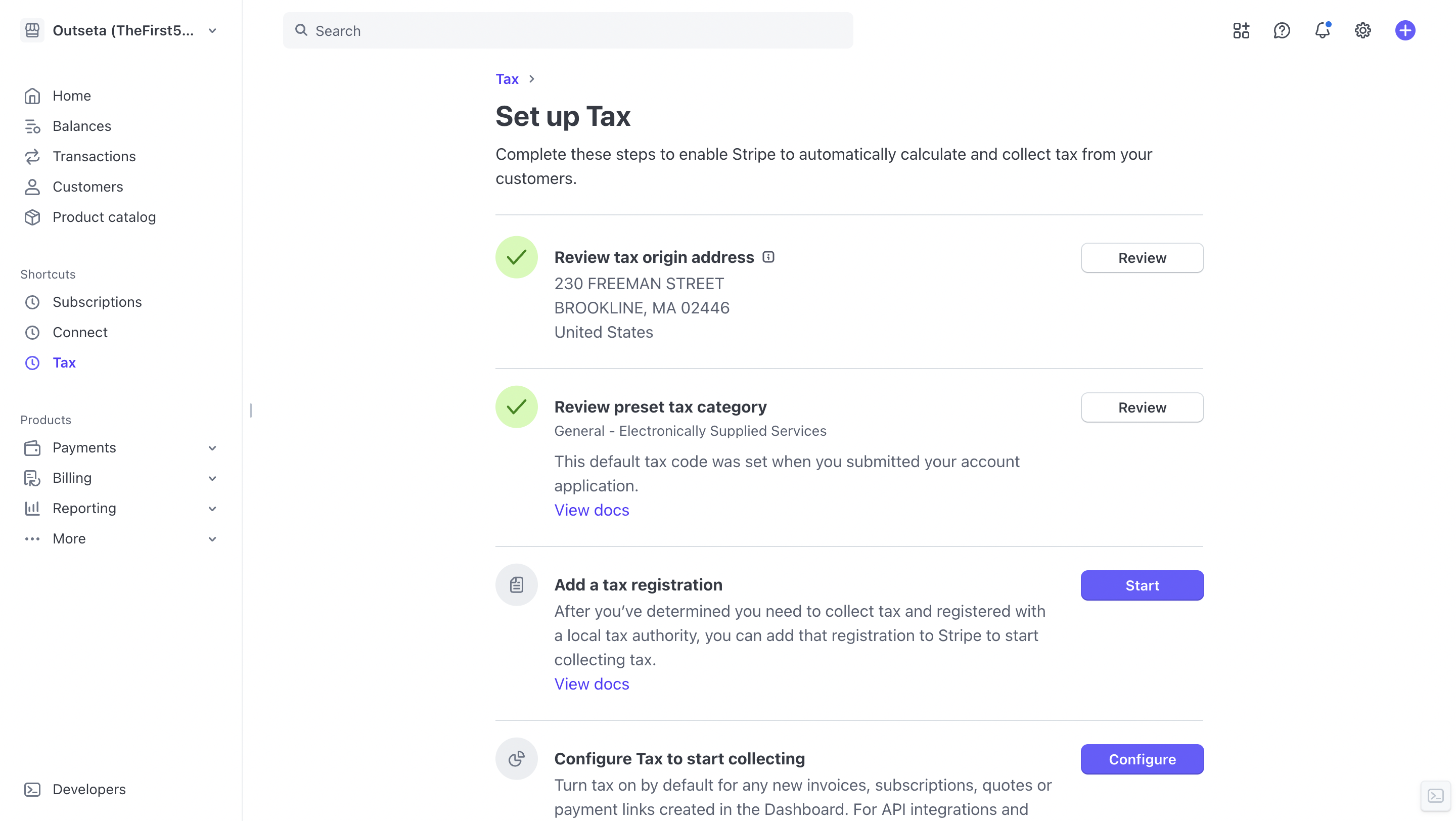
2. Start working through the checklist of items that Stripe provides to start setting up tax—you can always return to this list via this URL: https://dashboard.stripe.com/tax/setup
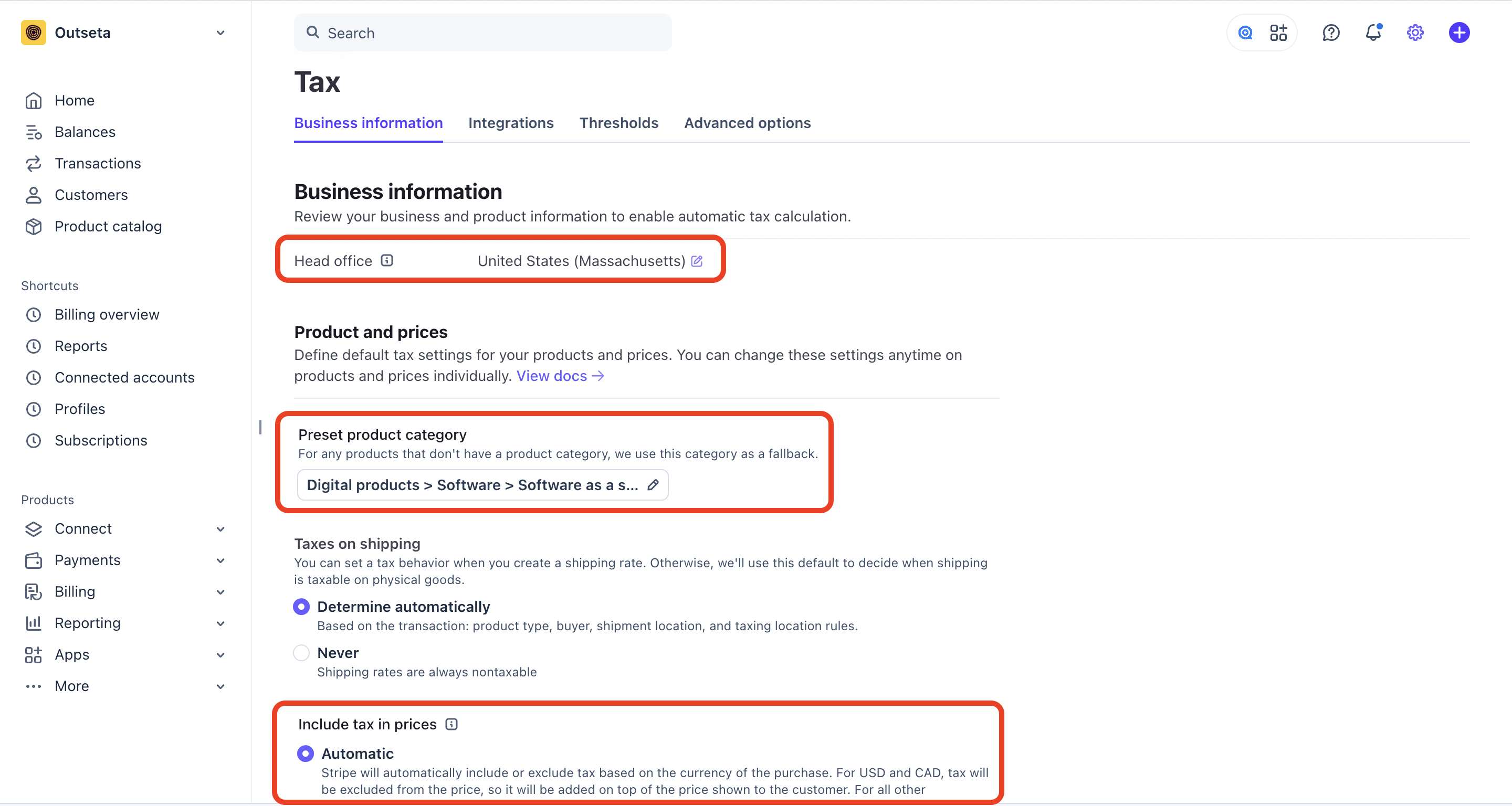
These settings can also be access anytime via the TAX SETTINGS page within Stripe:
https://dashboard.stripe.com/settings/tax
- Include an Head Office Address—this is generally where your business is located or incorporated.
- Set a Present Product Category—this identifies what type or product or service you are selling. For most Outseta customers, we recommend using the General - Electronically Supplied Services category.
- Choose whether you want to Include tax in prices. We recommend using the Automatic option here, which uses the currency set in your account to determine if taxes are charged inclusive or exclusive of your product's price.
3. Next, click on TAX > + ADD REGISTRATIONS.
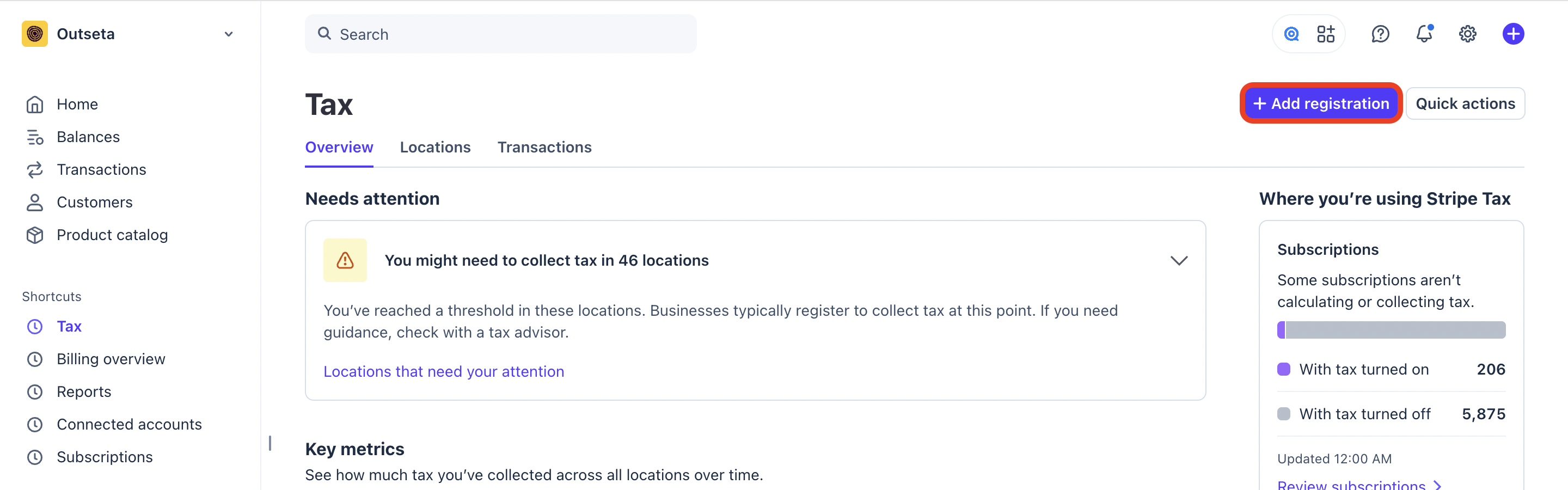
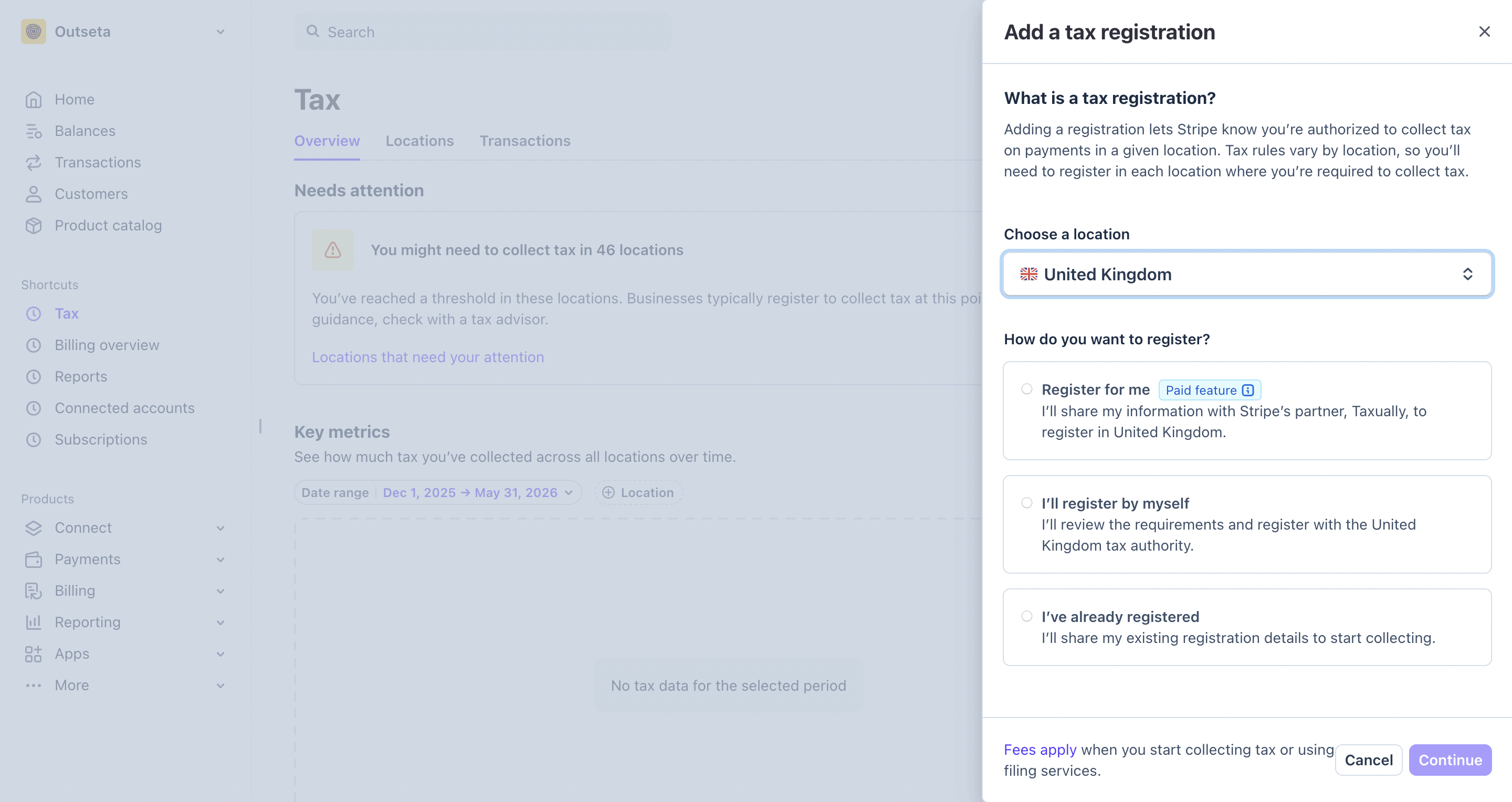
Use the modal to create registrations for any geographies where you want to collect tax.
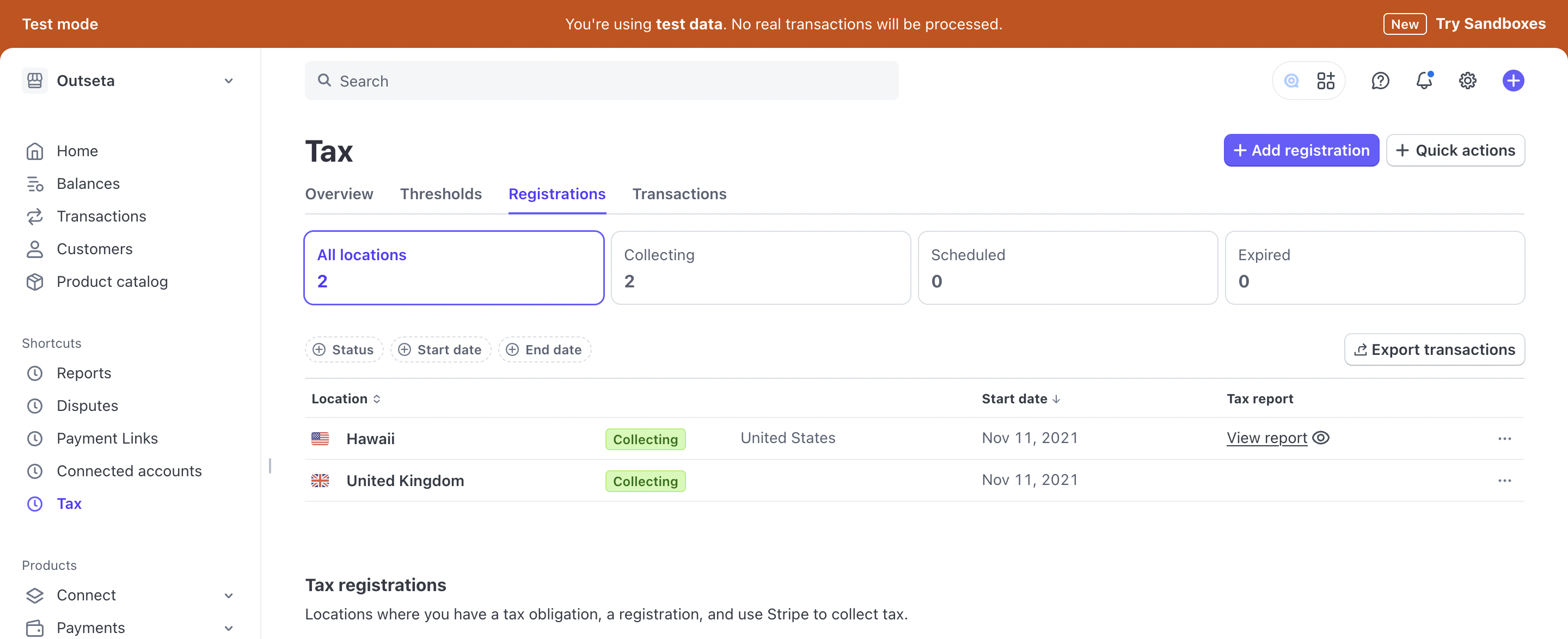
In this example I've included registrations for the state of Hawaii and the United Kingdom.
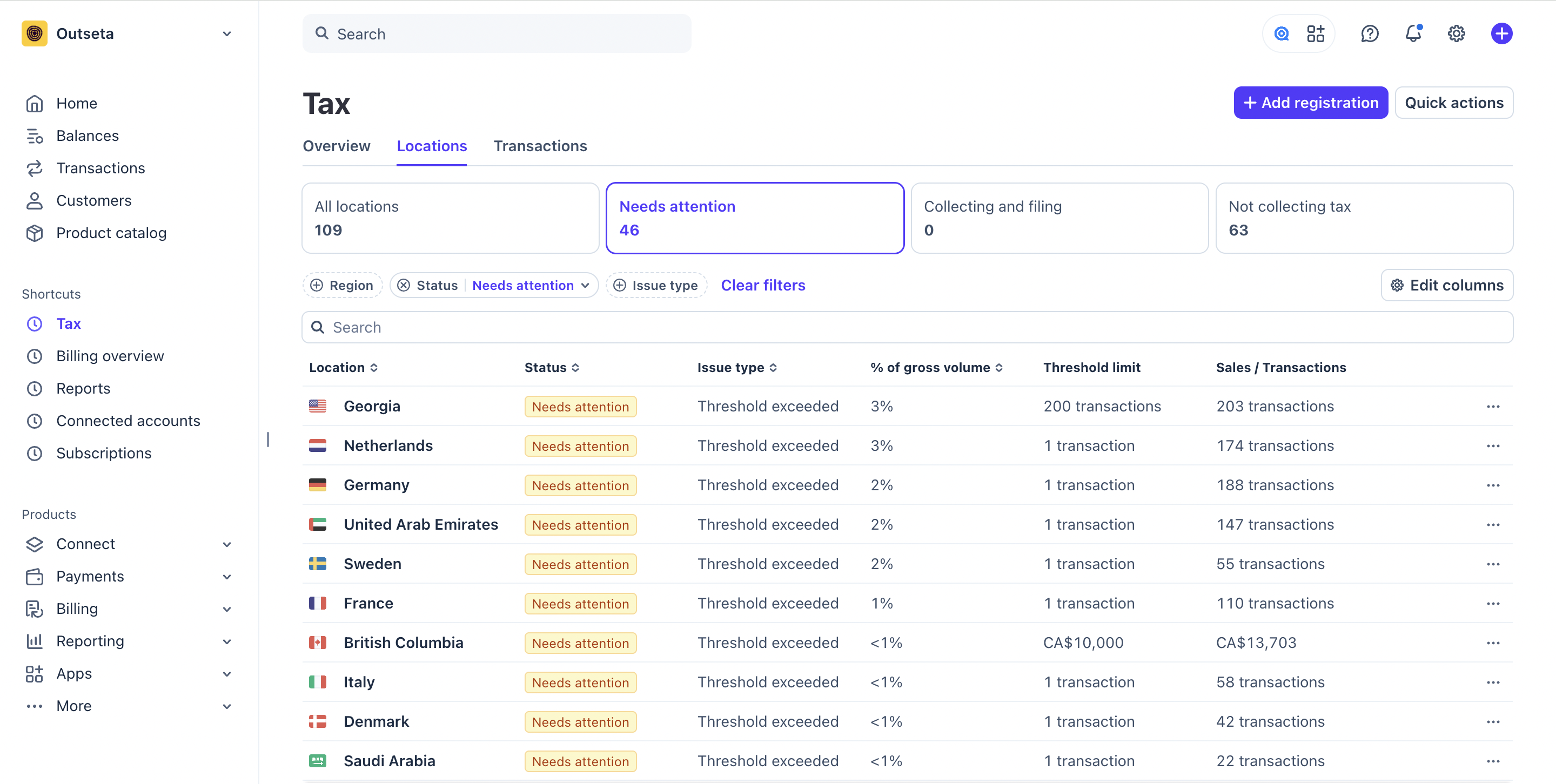
If you're not sure which registrations you should create, head over to TAX > LOCATIONS > NEEDS ATTENTION. Even if you haven't enabled Stripe Tax yet, Stripe automatically monitors where you've exceeded tax thresholds based on payment activity in your Stripe account. You should create registrations for these geographies so you start collecting tax (just click ADD REGISTRATION). You'll also see thresholds that are being monitored—these are geographies where you have customers, but are currently below the thresholds that require that you collect tax. You'll be alerted when you should create registrations for these geographies.
That's it! Tax will now be included at checkout for any customer that signs up from one of the geographies that you've created a tax registration for.