
This article explains how you can make a bulk update to a property or properties on your ACCOUNT records. This process is for updating your existing accounts rather than creating new ones.
👉 If you need to import new accounts and subscriptions, check out: How to Import Subscribers
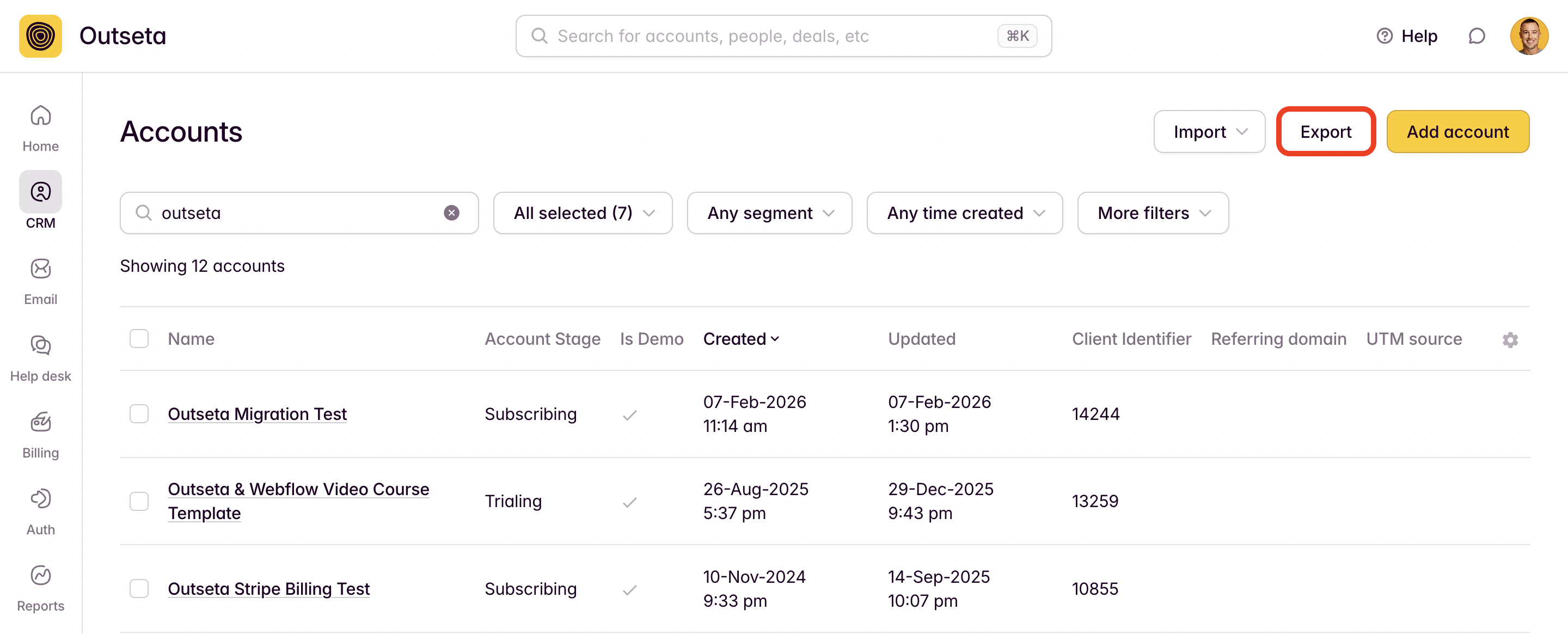
1. Start by going to CRM > ACCOUNTS and exporting your ACCOUNT data.
2. In the resulting file, you should delete all columns except:
- Primary Contact Email
- UID (this is most important—it's the unique identifier used to ensure the correct account is updated)
In the example below left the "Name" field in the import file which is fine—it's often useful to see the account name.

3. Add a column corresponding to the property you'd like to update in bulk. If you haven't already, add a custom property in Outseta to your ACCOUNT records so there's a place to store this data in Outseta.
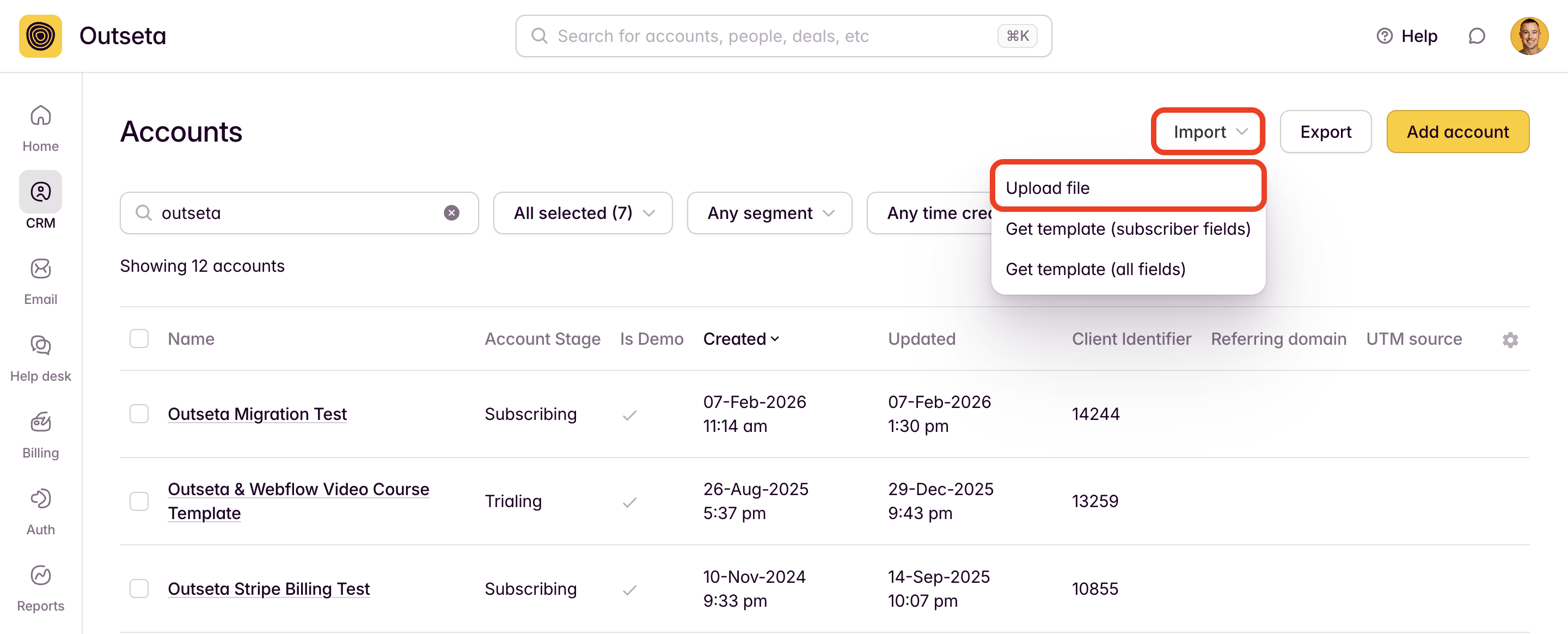
4. With your sheet now updated with the required fields from step #2 and the new property values from step #3, go back to CRM > ACCOUNTS and click IMPORT, then UPLOAD FILE.
5. Follow the import wizard to import your updated file. You can confirm that the update was successful after the import process is completed by checking one of your ACCOUNT records for the updated values.