
Connect your AI assistant to Outseta to research documentation, query your account, and create or update records using natural language.
The server gives your assistant access to Outseta's knowledge base and REST API reference alongside your connected account's data. Use it to answer integration questions, explore CRM and billing data, or prepare account changes for your review.
Model Context Protocol (MCP) is the standard that makes this connection possible.
Connect your AI assistant
Server URL:
https://agent.outseta.com/mcp
The server uses OAuth. Your assistant will open an Outseta sign-in page so you can authenticate and authorize the connection.
Use a client that supports remote HTTP MCP servers and OAuth.
Claude
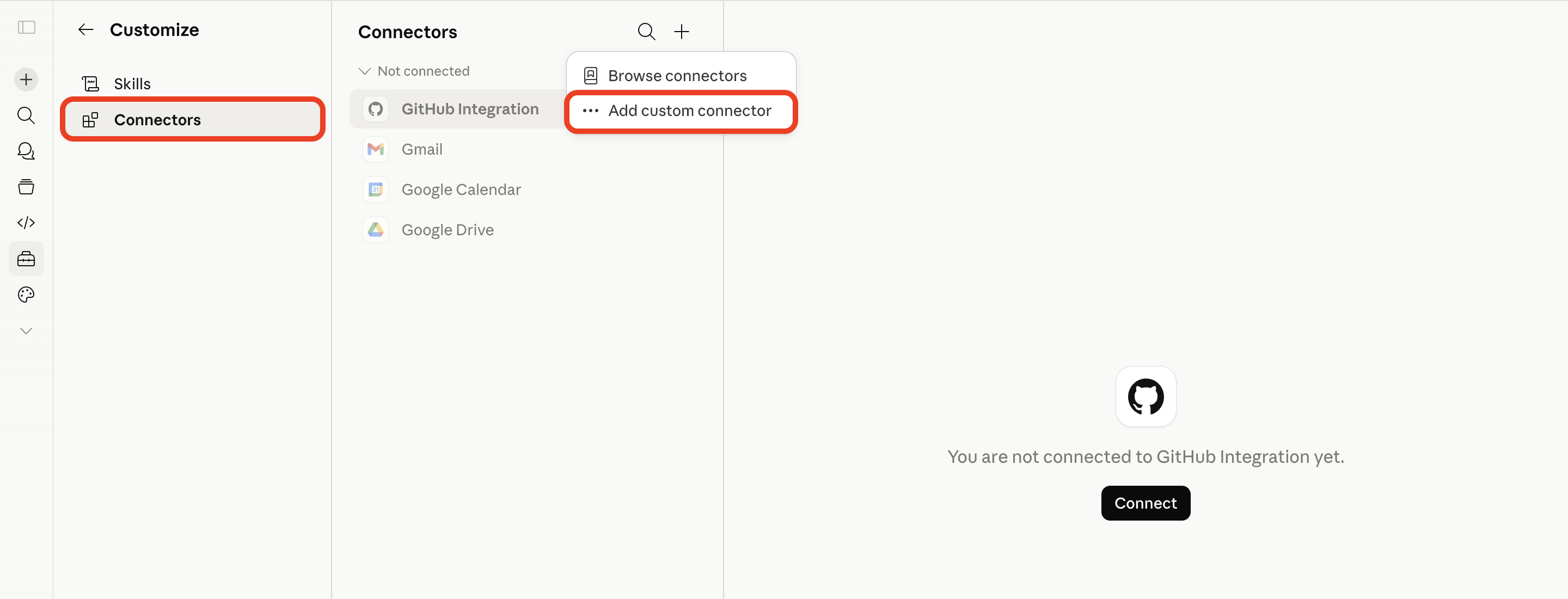
1. Open Claude's customization settings and select Connectors → Add Custom Connector. In some versions, this is under Settings → Connectors → Add.
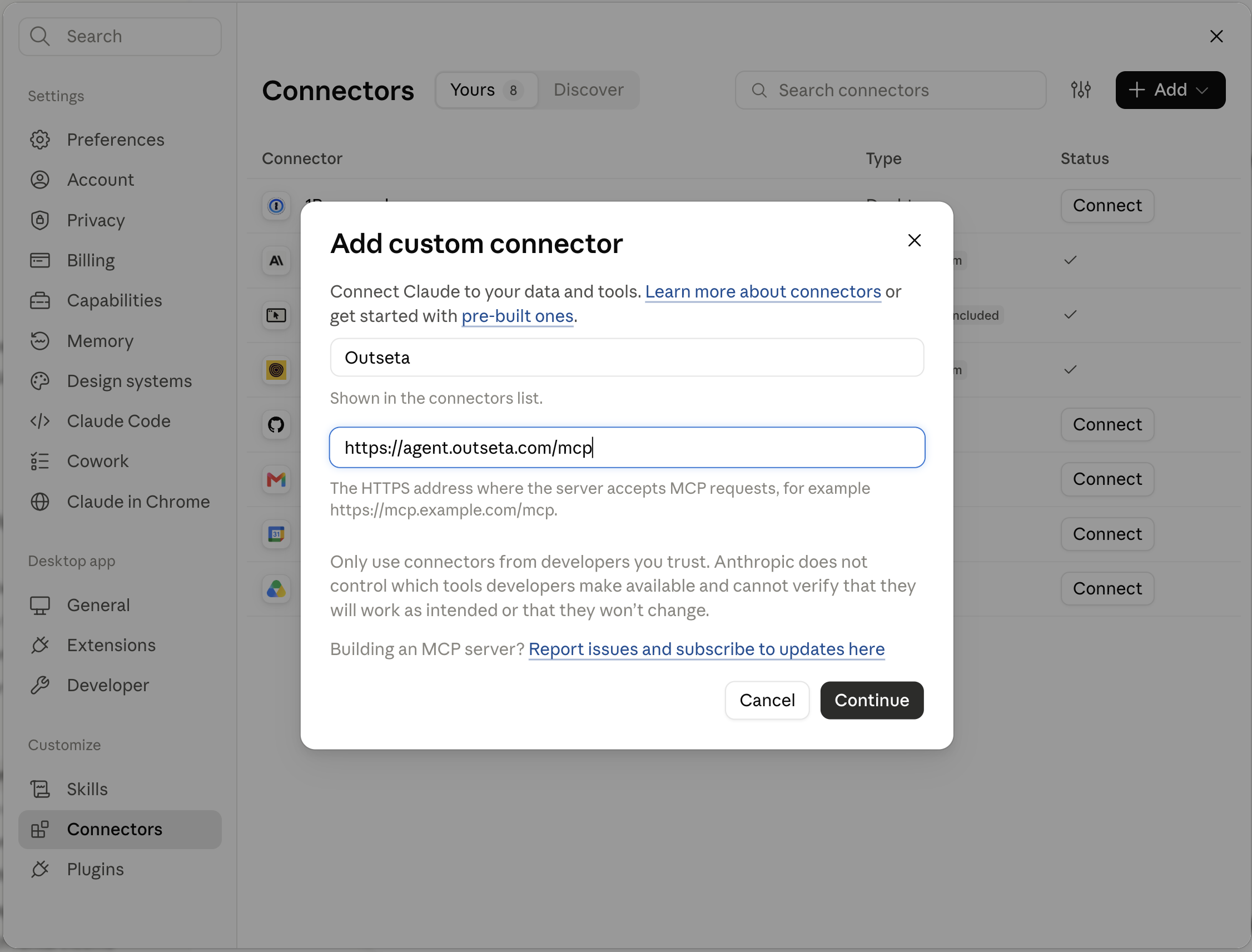
2. Name the connector Outseta and enter https://agent.outseta.com/mcp. Click Continue to add the connector.
3. Click Connect and complete the Outseta sign-in and authorization flow.
4. Review the connector's tool permissions before using it. Keep write operations set to Needs approval.
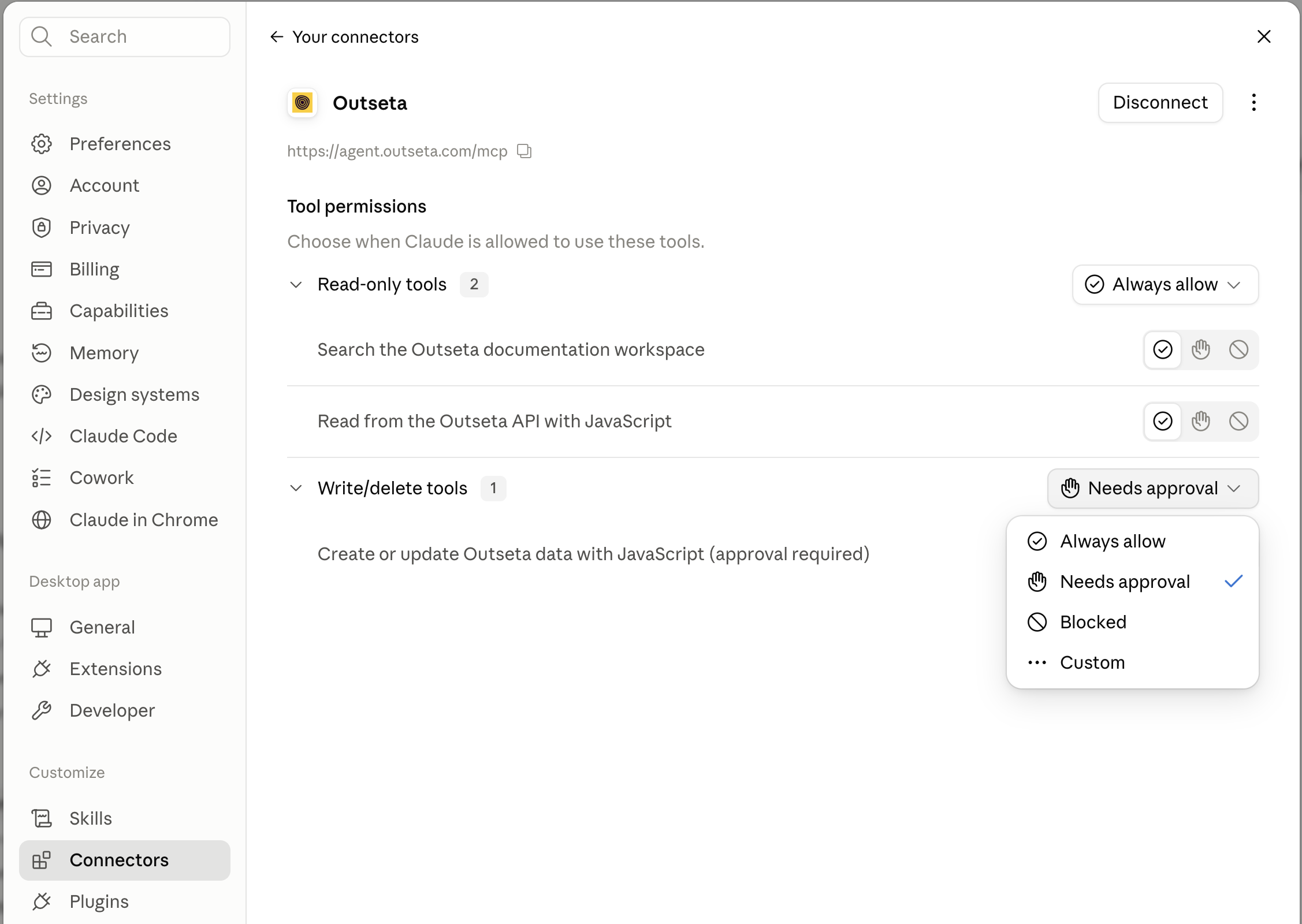
Menu names and connector availability may vary by Claude plan and version.
Claude Code
Run:
claude mcp add --transport http outseta https://agent.outseta.com/mcp
Then run /mcp in Claude Code and complete the OAuth sign-in.
Cursor
Add this configuration to .cursor/mcp.json in your project, or ~/.cursor/mcp.json for your user:
{
  "mcpServers": {
    "outseta": {
      "url": "https://agent.outseta.com/mcp"
    }
  }
}
If the file already contains other servers, add the outseta entry without replacing them.
Complete the OAuth sign-in when Cursor prompts you to connect.
Other MCP-compatible assistants
Add the server URL using your client's remote MCP configuration and follow its OAuth connection instructions. Configuration formats differ between clients.
What can the assistant do?
The server exposes three tools. Your assistant chooses the appropriate tool—you don't need to write code to use them.
| Tool | Purpose |
|---|---|
bash |
Research Outseta's knowledge base and REST API reference in a sandboxed documentation workspace with no network access. |
javascript_read |
Read data from your connected Outseta account, including people, accounts, subscriptions, plans, and email lists. |
javascript_write |
Create or update account data when write access is enabled and authorized. Each call includes a summary of the proposed change for review. |
Available operations depend on your session's permissions and the underlying Outseta API. The MCP server does not expose DELETE operations; use the Outseta interface for record deletion.
Example prompts
Research and integration
- “How should I integrate Outseta login and signup into my React app?”
- “Find the documentation for changing an account's subscription.”
- “Explain how Outseta people, accounts, and subscriptions relate to each other.”
Explore account data
- “Show me the active subscription plans.”
- “Find the account associated with [email protected].”
- “How many accounts were created in the last 30 days?”
- “List my email lists.”
Prepare changes
- “Find Acme Corp and show me its current subscription. Explain the impact of switching plans before making any changes.”
- “Create a person record for [email protected]. Show me the proposed details first.”
- “Find everyone matching these criteria and show me the exact list before updating anything.”
Be specific about names, email addresses, record IDs, and date ranges. For larger queries, ask the assistant to confirm that it has checked all relevant results.
Permissions and safe use
This connection can work with live account data. Review changes carefully, especially those affecting billing, subscriptions, or many records.
- Start with read access and enable write access only when needed.
- Keep your client configured to request approval for
javascript_write. Each write includes a summary describing the proposed change. - Before a bulk or irreversible change, ask the assistant to show the exact records affected and wait for your confirmation.
- Ask for a preview where the underlying operation supports one.
- After an update, ask the assistant to read the record again and verify the result.
A write summary describes the intended operation; it is not a guarantee that a change is reversible.
Building an app? Add the Outseta Agent Toolkit
The Outseta Agent Toolkit complements the MCP server with integration instructions, curated references, and plain HTML embed templates for coding agents.
The MCP server provides documentation and live account access. The toolkit guides implementation in your project.
Install the Outseta skill:
npx skills add outseta/agent-toolkit
Review the repository's AGENTS.md and, for Claude Code, CLAUDE.md. Add the relevant guidance to your project's existing instructions rather than overwriting them.
Then try:
“Review the Outseta skill and use the Outseta MCP documentation to help me integrate authentication into this project.”
Official packages
For React applications, use the official package:
npm install @outseta/react
It provides authentication state, login and profile components, gated routes, and other Outseta integrations.
For Node.js backends, use:
npm install @outseta/node-sdk
It provides helpers for server-side API access, JWT verification, webhook handling, and usage tracking.
The toolkit's skill explains how to use these packages. Its plain HTML templates remain useful for non-React and low-code integrations.
These packages are for building your application; they are not required just to connect an AI assistant to the hosted MCP server.
Troubleshooting
The server won't connect
Confirm that the URL is exactly https://agent.outseta.com/mcp, including /mcp. Check that your client supports remote HTTP MCP connections and OAuth, then complete the sign-in flow.
The connection expired or requests are unauthorized
Use your client's reconnect or sign-in option. If that doesn't help, disconnect the connector and authorize it again.
The assistant cannot access the expected account data
Check which Outseta account you authorized and whether your signed-in user has access to the requested data.
Read operations work, but writes are unavailable
Check your connector's permissions and whether the session was granted write access. Reauthorize if your client requires it after permission changes.
Tools are missing
Refresh the connection or restart your client. The current server exposes bash, javascript_read, and—when enabled and authorized—javascript_write, rather than a separate tool for each account operation.