
If you are migrating your business to Outseta from other subscription or membership management tools, you can easily import your existing subscribers into Outseta.
Best of all, if you're migrating from another product that processes payments with Stripe you can also import your existing customers' payment information making the migration process almost completely seamless for your existing subscribers.
Preparing your data for import
If you want to import existing subscribers or members, you'll perform an Account import in Outseta.
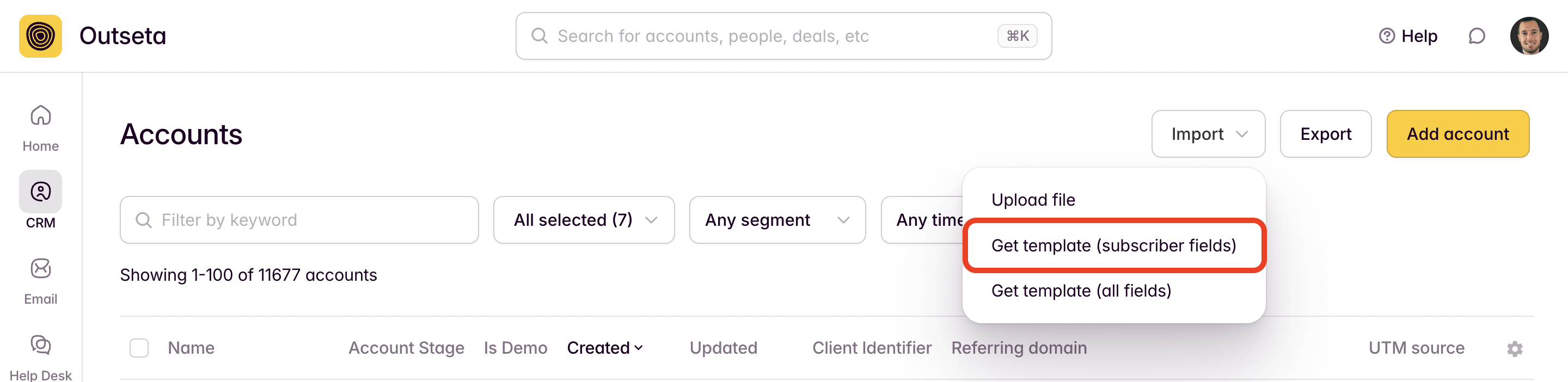
1) Start by going to CRM > ACCOUNTS and clicking IMPORT ACCOUNTS > GET TEMPLATE (SUBSCRIBER FIELDS).
If you prefer to work in Google Sheets, you can copy our OUTSETA SUBSCRIBER IMPORT TEMPLATE here instead (we recommend that you copy this sheet and add your data here so we can easily share the sheet with you).
This template contains only the fields required to successfully import subscriptions and one-time fee products. You can add any additional fields that you'd like to import as their own columns.
2) Copy and paste your existing subscriber data into the template file provided. The import process involves importing three buckets of information:
- Account Information
- Subscription or Product Information
- Payment Information
This information allows us to recreate your existing customers' subscriptions or products in Outseta.
Account Information
This information identifies your member or subscriber. The required fields are:
- Name—The name used to identify the account.
- Account Stage—The billing stage the account is in. This will be a value like "Trialing" or "Subscribing."
- Primary Contact Email—The email address of the primary contact for the account.
This information is typically exported from your existing CRM, membership software, or Stripe account—basically anywhere you can grab an account name and email address from.
Subscription Information
This information helps us reproduce each customers' current subscription or one-time products in Outseta. The required fields are:
Subscription Products
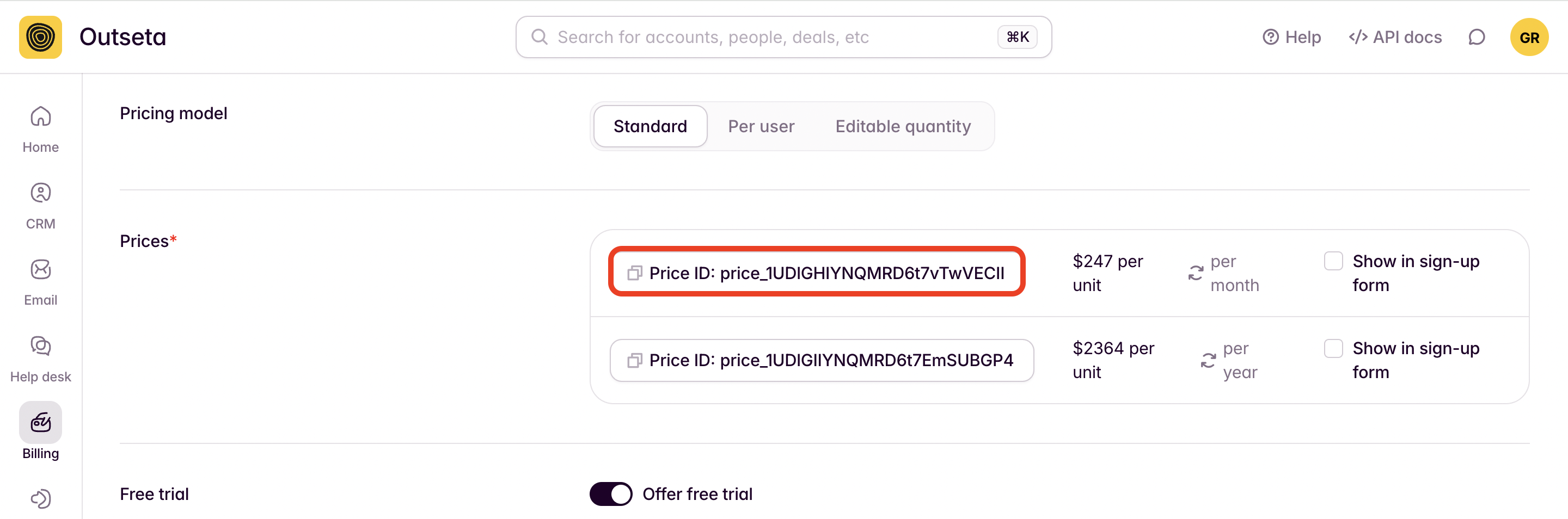
- Subscription Price IDs—This value reflects the product and price that the user should have in Outseta. You can find this value by going to BILLING > PRODUCTS and clicking on any product. Scroll down to the Prices section, and you can copy the Price ID. This will be a value formatting like: price_1UDlGHIYNQMRD6t7vTwVECII
- Subscription Current Period End Date—The date the subscription will renew and the customer will first be charged by Outseta. This must be a date in the future.
One-time Fee Products
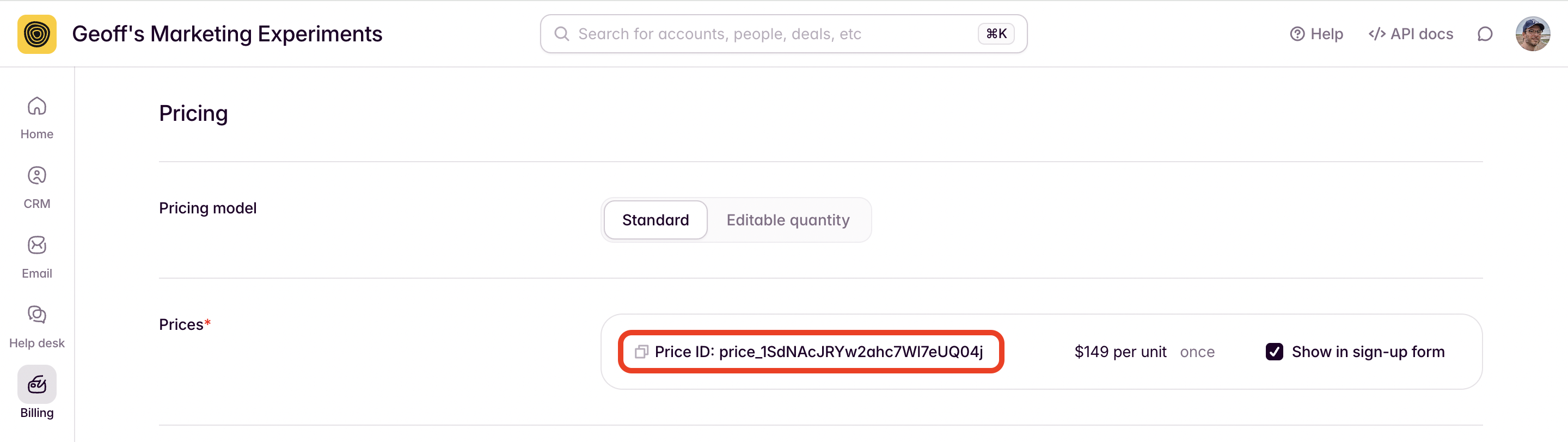
- One-time Price IDs—This value reflects the product and price that the user should have in Outseta. You can find this value by going to BILLING > PRODUCTS and clicking on any product. Scroll down to the Prices section, and you can copy the Price ID. This will be a value formatting like: price_1SdNAcJRYw2ahc7Wl7eUQ04j
This information is typically exported from Stripe or your existing subscription or membership management platform. Most often you'll access this information by doing a Subscriptions Export in Stripe. Please make sure to set the date range to ALL and include ALL COLUMNS in your export.
Payment Information
If you are migrating from another product that also processes payments with Stripe, we can also import each customers' credit card details so they don't need to re-enter this information.
The only required field is:
- Stripe Customer Token (Customer ID)—This token identifies the customer in your Stripe account. It typically starts with cus_.
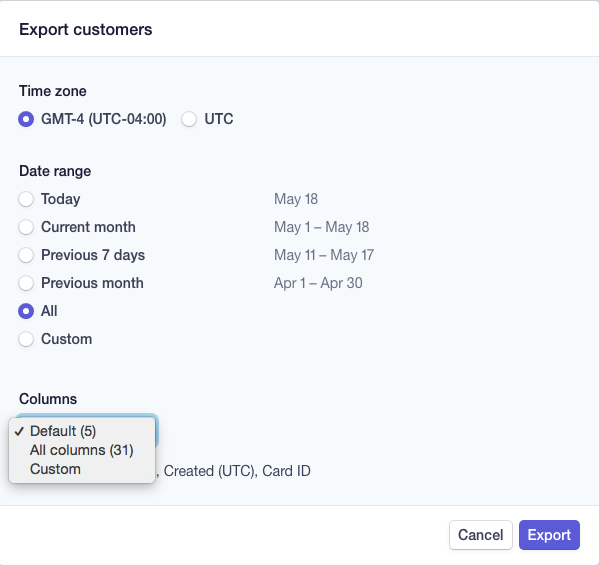
This information is accessed by doing a Customer Export in Stripe. Please make sure to set the date range to ALL and include ALL COLUMNS in your export.
Now that you know all of the information you'll need to successfully import subscribers into Outseta, you're ready to get started. Save your import file as a CSV.
If you need help preparing your data, email [email protected]. We offer this service free of charge to paying customers.
Importing your data
Before you import all of your existing subscribers into Outseta, we highly recommend that you do a Pilot Import where you import 3-5 subscribers prior to your entire data set. This gives you the opportunity to make sure the Pilot Import goes smoothly and all of your subscriber data is mapping as you'd expect.
Assuming all goes well with your pilot import, follow the steps below to complete your import.
1) Go to CRM > ACCOUNTS > IMPORT and select UPLOAD FILE. On the subsequent screen click UPLOAD FILE.
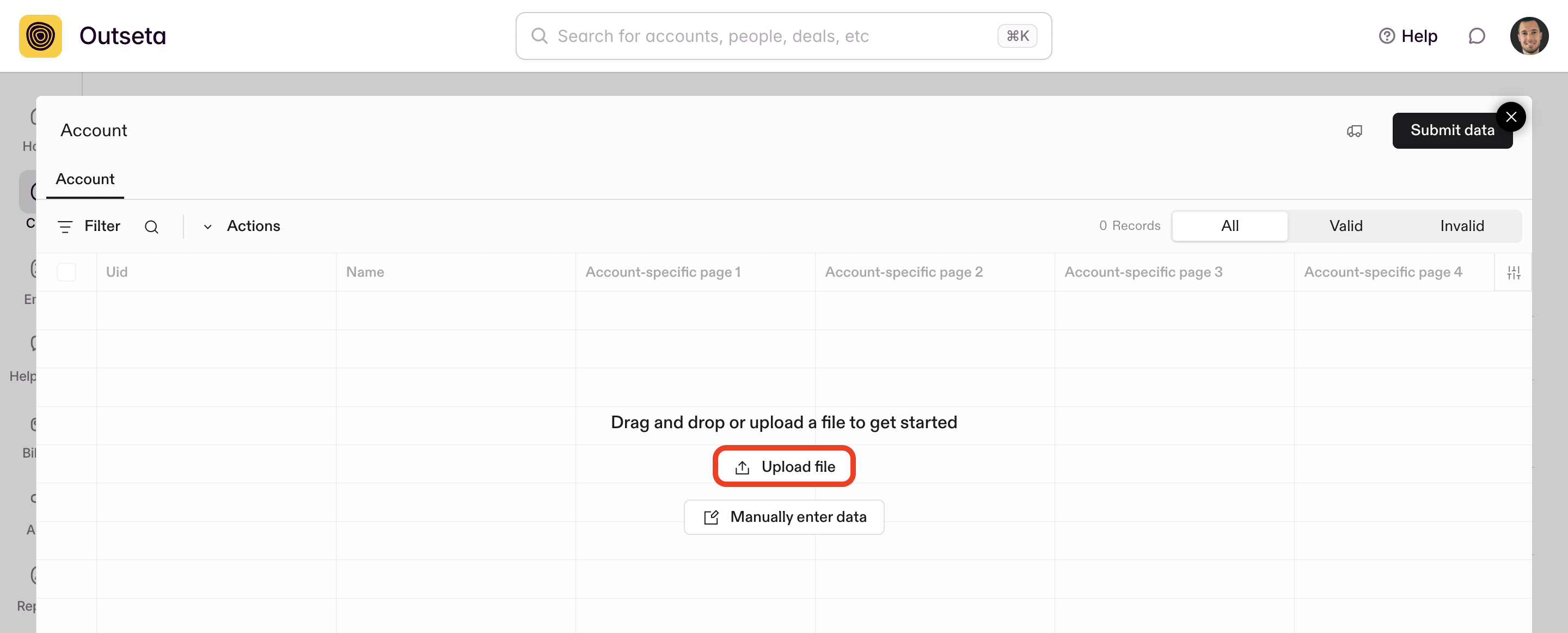
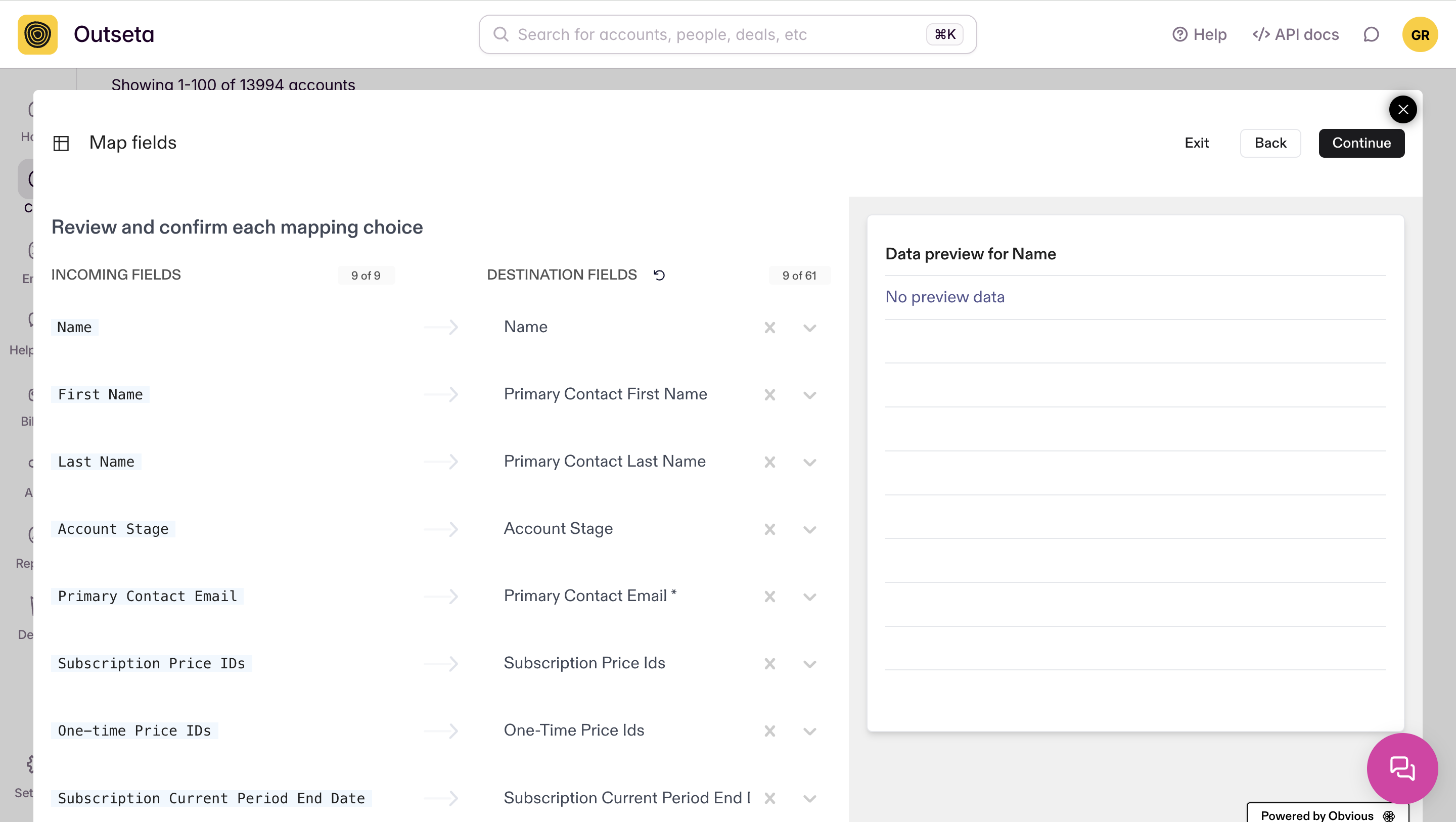
2) Select your file. The subsequent screen will ask you to map fields between your import file and Outseta.
- The INCOMING FIELDS represent fields in your import file.
- The DESTINATION FIELDS represent fields in Outseta.
Map your field appropriately then click CONTINUE.
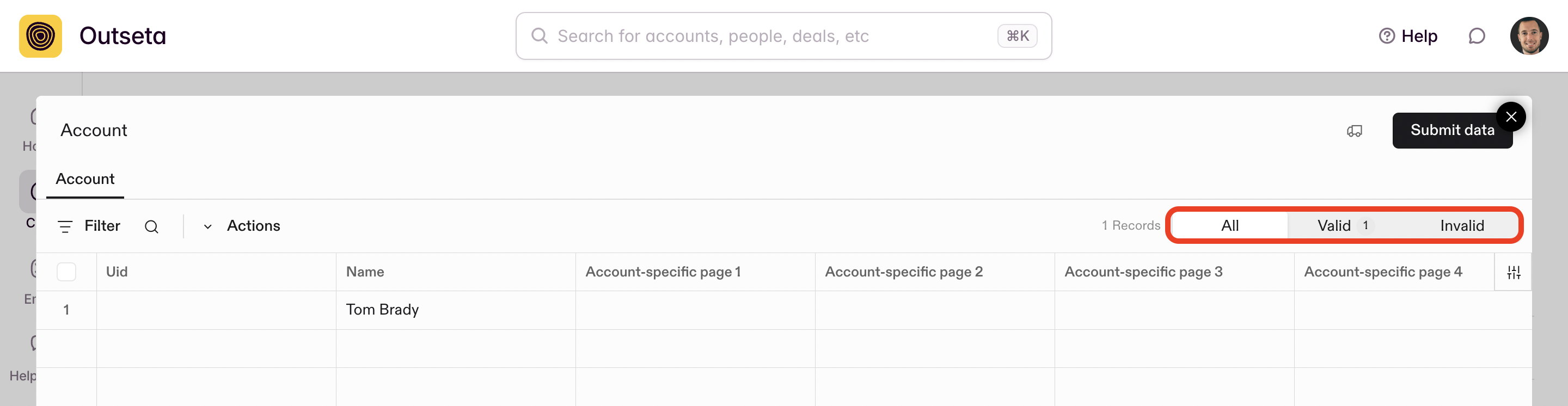
3) The following screen will show you how many rows in your spreadsheet have Valid vs Invalid data. Be sure to turn click on Invalid—rows that will have problems importing will be highlighted, and if you hover over the data you'll see an explanation of the issue so you can address it.
The most common issue is rows that have a Subscription Current Period End Date in the past. For example, if it's January 15, 2026 and you import a monthly subscription with a Subscription Current Period End Date of January 1, 2026 the row will be called out as Invalid. In this scenario, simply update the Subscription Current Period End Date to February 1, 2026.
Once you fix or delete any Invalid rows, click SUBMIT DATA.
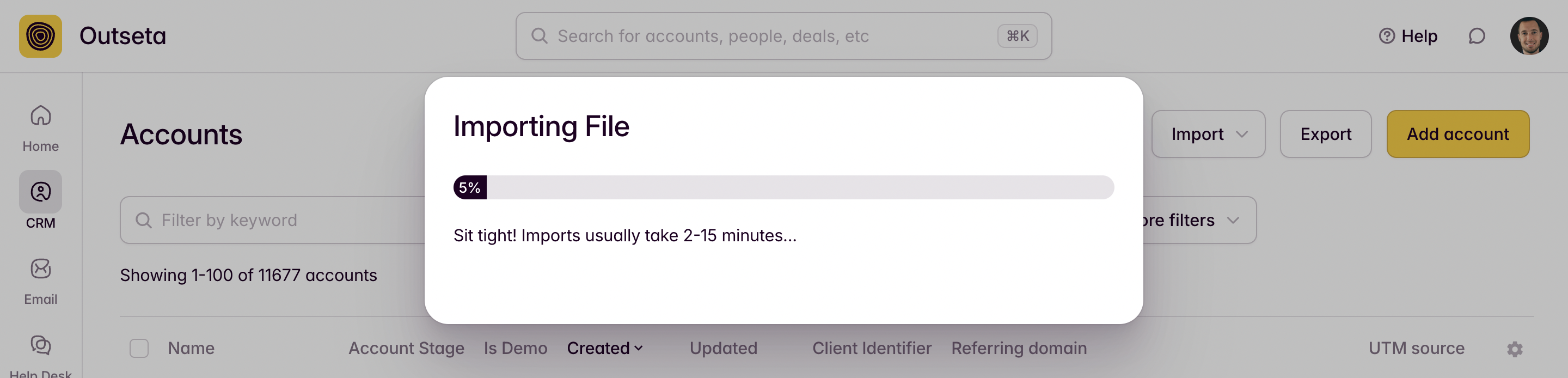
4) That's it! Your data is now importing—sit tight. As the message says, it will take anywhere from 2 to 15 minutes to import your data depending on the size of your import.
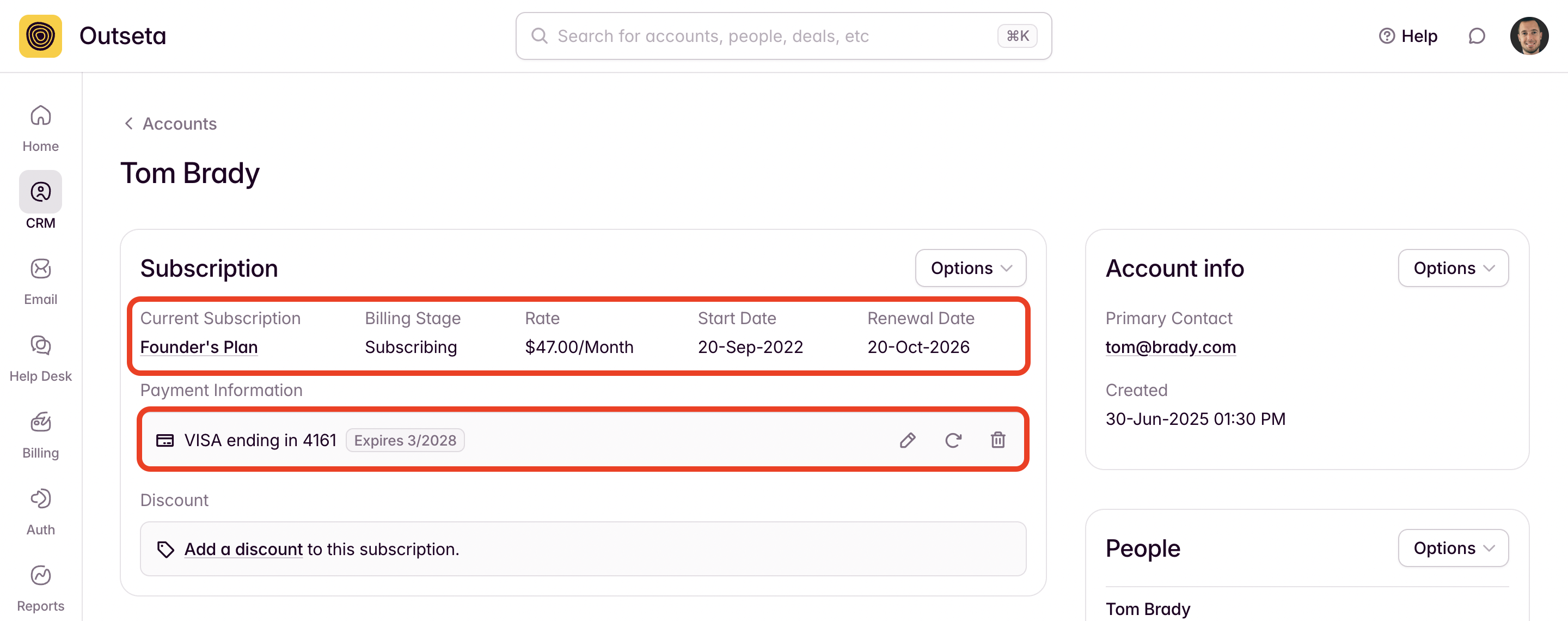
Once completed, it's worth spot checking a few accounts to see that their subscription information looks correct and that payment information is shown on their Account record as you see in the screenshot below.
Final Steps
1) Once your import has completed successfully, make sure to cancel your previous subscriptions. Otherwise your customers may end up getting charged both by Outseta and your previous payment provider. Cancel the pre-existing subscriptions however you would normally cancel a subscription—this may be directly in Stripe, or it may be done through your membership software provider depending on the product you're migrating from.
2) The final step after a successful import is to get your subscribers to establish a password with Outseta. There are two different approaches to consider here:
- Email users a link to a "Reset Password" page
- Send users Outseta's "Confirmation Email"
Email users a link to a "Reset Password" page
Outseta provides a hosted page to all customers where users can input their email address to reset their password. After importing your subscribers, you can send your subscribers an email prompting them to go to this page to establish a password.
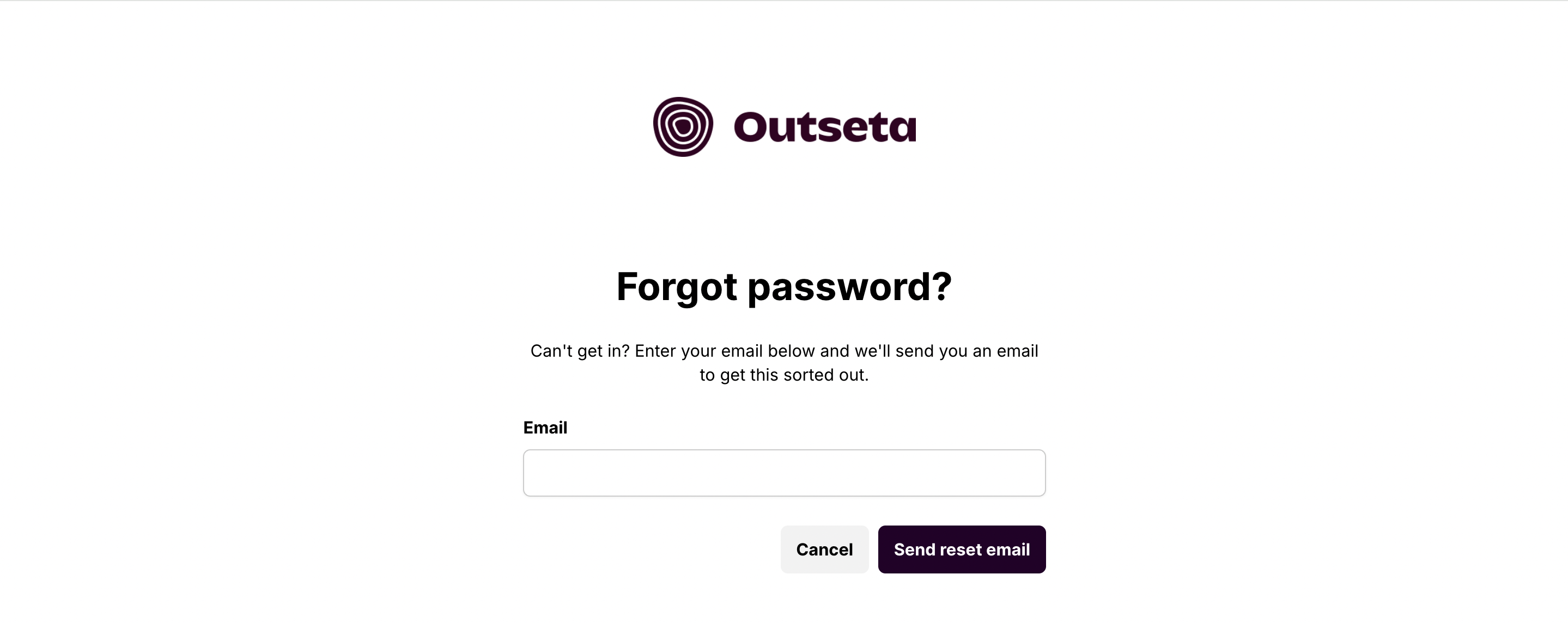
The URL of your page will be in the format: https://yourdomain.outseta.com/auth?state=forgotPassword
Make sure to update the bolded "yourdomain" section of the URL to reflect the URL of your Outseta account.
Send users Outseta's "Confirmation Email"
You can send Outseta's Confirmation Email (which walks the new subscriber through the process of setting their password) in bulk by going to CRM > ACCOUNTS and selecting the accounts that need to establish a password. Next, click SEND CONFIRMATION EMAIL.
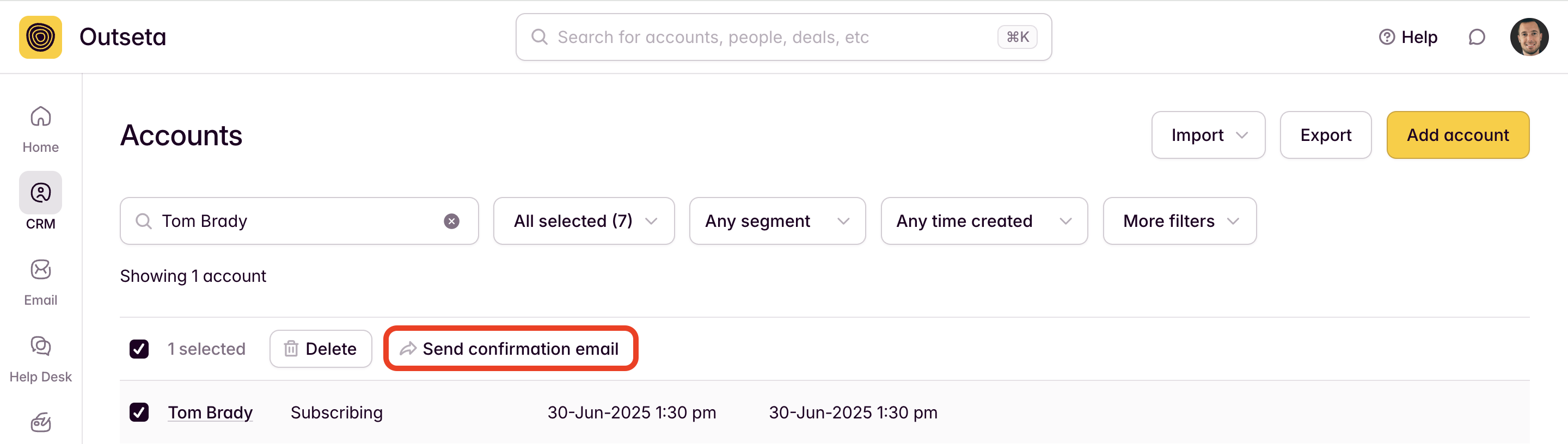
Please not that the link in the confirmation email prompting the user to set a password is only valid for 30 minutes. If the user clicks the link after that period has expired, they'll be given the option of sending themselves a second email with a new link that is valid.
NOTE: At this stage you've already imported your subscribers so they have an existing Account in Outseta—they just haven't established their password yet. If you want to make any copy edits to the confirmation email that the user will receive, you can access the email template by going to SETTINGS > TEMPLATES > EMAILS. The CRM - REGISTRATION CONFIRMATION template is the one that will be sent.
3) IMPORTANT—If you have existing drip email campaigns setup in Outseta (for example, emails sent to new subscribers) importing new subscribers will trigger those drip email campaigns. If you don't want your imported accounts to receive these emails, you should temporarily put your drip campaigns back in "Draft" mode so the imported accounts won't receive these emails.
That's it! Congrats and welcome to Outseta. Shoot us an email at [email protected] if you need any help importing your data.
Helpful Tips, Tricks, and Tools
A few tips, tricks, and tools that might be helpful having done a whole lot of these imports!
Split text to columns—The "Split text to columns" feature is in Google Sheets (found under the DATA tab) is helpful if you have Full Names (Tom Brady) than you want to split into First Name (Tom) and Last Name (Brady) fields. Choose the "Space" option to identify where the split should occur.
Concatenate—A helpful function in combining names together. The "Split text to columns" function may inadvertently split longer names into multiple columns. Concatenate can help you combine those names back together (this is common with longer names like Thomas Julian Edelman Brady).
VLOOKUP or Google Sheets Merge Sheets Extension by Ablebits—Preparing your data most often starts with merging your "Subscriber" and "Customer" data from Stripe based on a common value found in your export files. We recommend using the "Customer ID" value for this purpose.
If you're familiar with Google Sheets, Excel, or spreadsheets in general then the VLOOKUP function is a common method of doing this. If you're not, the "Merge Sheets Extension" for Google Sheets is a great option—you can watch me use this extension in the video demonstration above.